Video Maker
- 4.8
- Rating
- 100.00M
- Installs
- Free
- Price
 Analysis by App-foxy
I spent time with Video Maker as a practical mobile editing tool rather than treating it like a full desktop replacement. It is built for people who want to turn clips, photos, music, effects, and quick adjustments into something ready to share without learning a complicated timeline first. That focus is immediately clear: the app feels most comfortable when I am making a short social video, a birthday montage, a travel recap, or a simple clip for friends.
What makes it interesting is the balance between accessibility and ambition. Video Maker, developed by InShot Video Editor, offers enough creative control to move beyond a basic slideshow, while keeping the process approachable on a phone. I would recommend it to someone who edits regularly for Instagram-style posts, short personal projects, or casual creator work. I would not choose it for a long documentary, advanced color finishing, or a project that depends on highly precise audio mixing.
How the editor feels in everyday mobile use
The first useful decision is to begin with the final destination in mind. A vertical social clip, a landscape family video, and a square product montage do not need the same framing. Video Maker is at its best when I decide that early, because cropping and repositioning later can make a subject feel cramped. I usually check the canvas before adding decorative elements, then build the edit around the composition rather than trying to rescue it at the end.
In-Depth Coverage of Video Maker
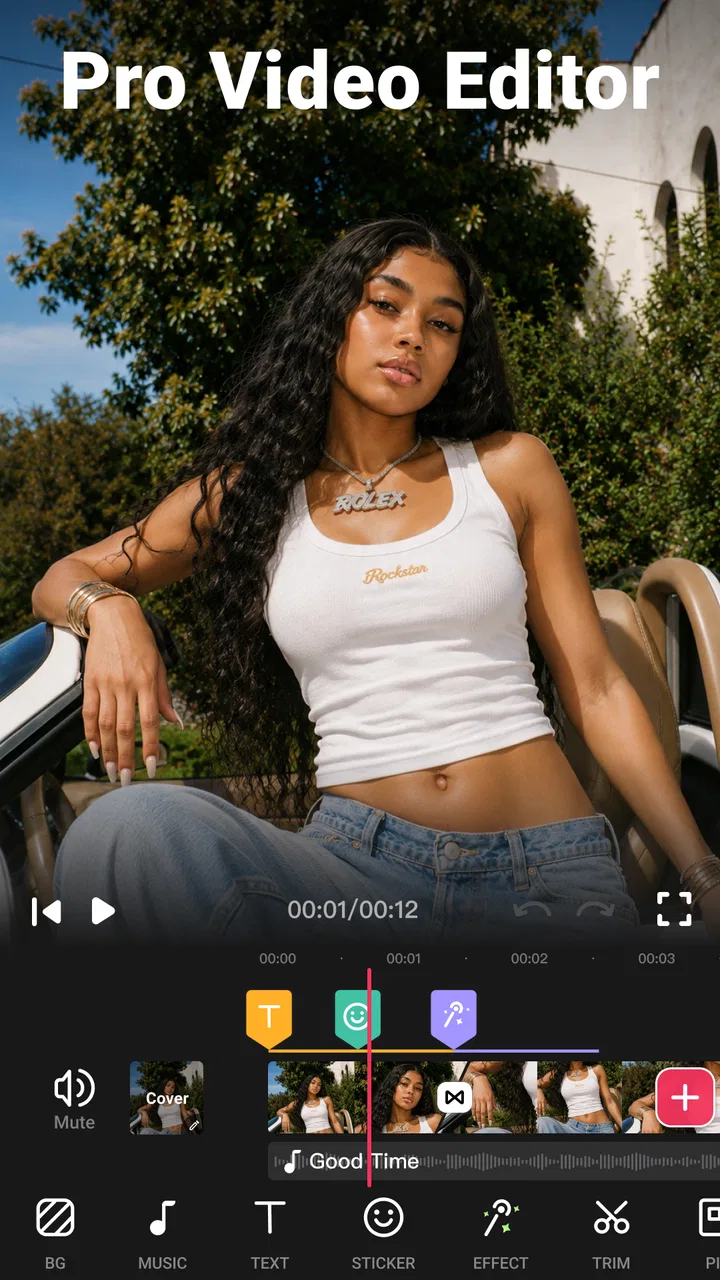
The basic workflow is familiar: bring in media, arrange it, trim unwanted sections, add music or sound, apply effects, and export. That familiarity matters on a small screen. I do not need to search through a dense professional interface to find the tools I use most. The trade-off is that the editor can feel less exact when I want frame-perfect adjustments or a complex stack of layers.
The app belongs to the video players and editors category, but I see it more as a creation tool than a playback utility. Its strongest use is taking ordinary phone footage and giving it a clear rhythm. A few well-timed cuts often improve a clip more than adding several effects, and the interface encourages that kind of quick decision-making.
For a realistic everyday example, imagine returning from a weekend outing with several short clips, a few portraits, and one song in mind. I would first remove shaky openings and pockets of silence, then place the strongest visual near the beginning. After that, I would use transitions sparingly, add text only where it helps identify a place or moment, and check the entire result with the phone held upright. This workflow is faster and more coherent than dropping every clip into a slideshow and decorating it afterward.
Where connectivity becomes part of the experience
The editing itself feels like a local, hands-on activity, but a connected phone changes what is convenient around it. Importing media from cloud services, browsing for music, sharing a finished video, or using any part of the experience that depends on online resources can make the network connection noticeable. I plan those moments rather than assuming the whole process will feel identical with weak reception.
This matters especially when I am traveling. A video can be assembled during a train ride or in a waiting room, but the practical experience may change when I need to fetch an asset or send the finished file. I prefer to collect the clips and any music I intend to use before leaving reliable coverage. That small preparation prevents the edit from becoming dependent on a connection at the exact moment I want to finish it.
I also avoid judging the app by the speed of sharing alone. A slow upload can be caused by the size of the finished video or the network rather than the editing tools. My better habit is to watch the exported file first, confirm that the framing and sound are correct, and only then send it. This avoids wasting connectivity on a version that still needs changes.
When I am using network-sensitive resources, I keep the creative plan simple. If the project depends on downloading several decorative elements or repeatedly previewing remote content, the experience becomes less predictable. A prepared media folder and a clear storyboard make Video Maker feel much more dependable than improvising everything while connected through an unstable mobile signal.
Why it suits phones better than a desktop-style editor
The main advantage of a phone editor is immediacy. I can record a clip, review it, trim it, and make a presentable version without moving files to another device. Video Maker takes advantage of that habit. Its appeal is not that it replaces every professional tool; it is that it reduces the distance between capturing a moment and publishing a finished one.
I find this especially useful for short vertical content. A phone screen makes it easy to judge whether a face, caption, or central object remains visible in the intended frame. The limitation is that the same small screen becomes tiring when a project grows. With many clips, multiple audio decisions, and repeated text changes, the timeline demands more patience than it does on a larger display.
One practical tip is to rename or organize source clips before starting a larger project. On a phone, similar filenames and repeated takes can make selection slower. I also keep a rough order in mind: opening shot, supporting detail, main moment, and closing image. This is not a feature of the app, but it makes the app’s quick editing style work far better.
Another useful habit is to watch the draft without touching the controls. When I edit while constantly pausing, I can mistake individual cuts for a good overall pace. A complete preview reveals whether the middle drags, whether the song overwhelms spoken audio, or whether a transition draws attention away from the subject. Video Maker makes quick experimentation easy, so disciplined reviewing is what keeps the result from feeling overprocessed.
Music, effects, and the point where restraint matters
Adding a song can instantly give a montage direction, but it can also hide weak footage. I prefer choosing music after the rough cut rather than before it. Once I know the length and mood of the visuals, I can make the audio support the edit instead of forcing every clip to fit a track that seemed exciting at the start.
You May Also Like

 8 Ball Pool
 Is Built on Rivalries, Rematches, and Routine
A close look at the rivalries, rematches, shared routines, and unanswered safety questions that turn a quick pool match into a persistent mobile community.

 Samsung Music
’s Quiet Strength Is Playing What You Already Own
Its reach comes less from spectacle than from dependable access to a personal library. That simplicity is both the app’s strongest retention engine and its ceiling.

 AccuWeather: Weather Radar
AccuWeather Review: A Quick, Clear Forecast for Everyday Decisions
For everyday plans, the best forecast is the one you can understand quickly. AccuWeather makes rain timing, radar, and local conditions easy to act on, with a few trade-offs.

 Hill Climb Racing
Why Hill Climb Racing Still Turns Crashes Into One More Run
A tiny car, a bumpy hill and one more upgrade: Hill Climb Racing keeps resurfacing because its simple chaos makes every near-miss feel personal.

 AliExpress - Shopping App
AliExpress Makes Global Shopping Feel Personal, but Shoppers Bear the Risk
AliExpress turns a global marketplace into a pocket-sized discovery engine. Its reach is useful, its shopping loop compelling, and its trade-offs easy to miss.

 Lords Mobile: Kingdom Wars
Lords Mobile Is a Kingdom-Building Routine, Not a Quick Match
A case-by-case verdict on the building, battles, device demands, and social commitments that make Lords Mobile rewarding for some players and exhausting for others.
More From Our News Desk
View All News


The same principle applies to effects. They are useful for marking a change in mood or giving a repeated visual style to a short series, but applying them to every clip makes the video feel less intentional. I usually select one visual treatment and reserve stronger effects for a transition or a deliberate moment. That approach is one of the easiest ways to make a mobile edit look cleaner without spending more time on it.
Slow motion can be effective when the original movement has enough visual interest, such as a jump, a splash, or a quick gesture. It is less helpful when used to stretch an ordinary clip. I check the result at normal speed afterward because a dramatic effect can make the timing feel artificial. The app gives casual editors access to these creative choices, but it does not remove the need to judge whether they fit.
Text deserves similar care. I keep captions short, place them away from faces and important edges, and preview them against both bright and dark footage. A title that looks clear on one frame may disappear when the background changes. On a phone, it is easy to approve a caption too quickly because the editor view is small, so I always watch the section in motion before exporting.
What happens when a project goes wrong
Mobile editing is not only about making a good cut; it is also about recovering from mistakes without losing the work. I save a rough version before making a major change, especially when I am testing a new order or adding several effects. That gives me a safer point to return to if the project starts moving in the wrong direction.
I also separate creative decisions from export decisions. First I finish the story, then I check the final preview, and only afterward do I choose the output approach that fits where I plan to share it. If the exported file looks wrong, I can identify whether the issue came from the edit or from the final rendering step instead of changing everything at once.
Connectivity can complicate recovery. If I am trying to share a large result over an unreliable connection, repeated attempts are frustrating and may consume time or mobile data. My preferred approach is to keep the finished file available on the device, verify it locally, and wait for a more stable connection before sending it. I do not treat a failed upload as evidence that the edit itself failed.
Storage is another practical concern. Video files can be large, and keeping every discarded take beside every export makes later projects harder to manage. After confirming that the final version is safe, I remove obvious duplicates and unused exports. This is particularly important for people who use their phone as both camera and editing workstation.
Using it carefully on mobile data
Video Maker is free to download and use, with optional in-app purchases ranging from $2.99 to $59.99 per item. That makes it easy to start without committing money, but I would still inspect any purchase screen carefully before confirming an upgrade. The free entry point is useful for testing whether the workflow suits you, while the paid options are more relevant to people who edit often and want a broader experience.
I am careful with mobile data around video because the largest cost is often the media itself rather than the editing action. I prefer importing clips already stored on the phone, preparing music in advance, and postponing sharing until I have a dependable connection. I also avoid repeatedly exporting after every tiny change. A short preview is enough while editing; a final export should happen once the sequence is genuinely ready.
A less obvious data-conscious technique is to make a low-pressure draft first. I assemble the order, trim obvious mistakes, and check the pacing before adding elaborate effects or captions. This reduces the number of full exports and prevents me from sending several nearly identical versions to friends or clients. It also keeps the project easier to revise if the first idea does not work.
People who regularly create long, high-resolution projects should think about the phone’s available space and processing comfort before committing to a complicated edit. Video Maker is designed around quick mobile creation, not around replacing a workstation with unlimited room for source files. For short projects, that is a strength; for extensive ones, it becomes a boundary.
How it compares with familiar alternatives
Compared with a basic gallery editor, Video Maker gives me a more complete path from raw clips to a shaped presentation. A gallery tool is often quicker for a single trim or crop, but it usually does not encourage the same combination of music, timing, text, and effects. If I only need to remove the beginning of a clip, I would use the simpler option. If I want a small story, this app is more suitable.
Compared with a desktop editor, it is faster to start but less comfortable for precision. Desktop software generally wins when I need detailed audio control, extensive layer management, or a long timeline that must be revised repeatedly. Video Maker wins when the priority is making something shareable from footage that is already on my phone.
It also occupies a useful middle ground between automatic montage tools and advanced editors. An automatic tool can produce a result with very little effort, but I may not like its choice of moments or pacing. A professional editor gives me deeper control, but asks for more time and attention. Video Maker lets me make the important choices myself without turning a short personal project into a technical assignment.
That middle position explains who should skip it. If you want one-tap results and do not care about arranging clips, a more automated option may feel easier. If you need professional finishing, a larger-screen editor is the better investment. Video Maker is for the person who wants control over the main creative decisions while keeping the process friendly to a phone.
Compatibility, audience, and long-term value
The app is suitable for Everyone and requires Android 8.0 or later. That broad compatibility makes it practical for many Android users, although I would still consider the age and performance of the device when working with several clips. A newer phone will generally feel more comfortable for previewing and exporting demanding projects than an older handset, even when the operating system meets the requirement.
The current version is 1.601.190, and the app has been available since December 18, 2017. Its scale is reflected in an average rating of 4.8 from around three million ratings, alongside roughly forty-three thousand written reviews and over one hundred million installs. Those figures suggest that the workflow has reached a very large audience, but they should not replace personal testing: an editor can be popular and still feel wrong for someone who needs a different level of control.
I see the strongest long-term value for people who make frequent short videos: family updates, social posts, school projects, small business clips, or quick event recaps. Repeated use rewards a consistent process. Once I know how I want to sort clips, choose a canvas, check text, and review audio, the app becomes a reliable part of my routine rather than a tool I have to relearn each time.
For occasional users, the free starting point lowers the risk of trying it. The important question is not whether it contains many creative options, but whether those options help you finish. If you tend to add effects simply because they are available, the app can encourage unnecessary decoration. If you use its tools to clarify a story, it becomes much more valuable.
My final connectivity verdict
Video Maker works best when I treat connectivity as one part of the workflow rather than expecting the network to solve every step. I prepare media before editing, keep drafts manageable, preview before exporting, and delay sharing until the connection is dependable. That approach makes the experience calmer and reduces wasted transfers.
My overall impression is positive. This is a capable, approachable mobile video editor for short, visually focused projects, and the combination of music, effects, slow motion, and AI-oriented creative tools gives casual creators room to grow. Its limitations are just as clear: a small screen is not ideal for complex timelines, elaborate projects can become cumbersome, and network-sensitive moments deserve planning.
My recommendation is simple: choose Video Maker if you want hands-on control without the weight of a desktop editor. It is especially convincing for quick social videos and personal montages made directly from a phone. I would look elsewhere for demanding professional post-production, but for everyday creation, it offers a useful balance of speed, flexibility, and approachability at a free starting price.
FAQs for Video Maker
01What features does Video Maker offer?
Video Maker provides a range of features including video trimming, merging, adding music, filters, and text overlays. It also supports various video formats and resolutions, allowing users to create professional-quality videos. Additionally, it offers easy sharing options directly to social media platforms.
02Is Video Maker free to use?
Video Maker offers a free version that includes basic features and tools. However, for access to advanced features, such as premium filters, effects, and additional editing tools, users may need to upgrade to a paid subscription. Pricing details and options can usually be found within the app.
03What devices are compatible with Video Maker?
Video Maker is designed to be compatible with both Android and iOS devices. It typically supports devices running Android 5.0 and above, as well as iOS 11.0 and later versions. It’s always recommended to check the app store for specific compatibility with your device model.
04How user-friendly is Video Maker for beginners?
Video Maker is designed with an intuitive interface that is accessible for beginners. It includes tutorials and guides to help new users navigate its features. The drag-and-drop functionality and straightforward editing tools make it easy for anyone to start creating videos without prior experience.
05Does Video Maker include a watermark on videos?
In its free version, Video Maker may include a watermark on the exported videos. To remove the watermark and access additional features, users might need to subscribe to the premium version. Details about watermark removal are usually available within the app’s settings or subscription page.
Pros
- User-friendly interface for quick editing
- Wide variety of effects and filters
- Supports 4K video resolution
- Easy sharing to social media platforms
- Includes royalty-free music library
Cons
- Limited export formats available
- Occasional app crashes on older devices
- In-app purchases for premium features
- Ads can be intrusive during editing
- Requires internet for some features

Video Maker
Gallery